Export & Import Design Layout
Save your entire working state to a file and bring it back exactly as you left it.
Last updated July 19, 2026
This is how you save and resume your work in Auto BIM Route.
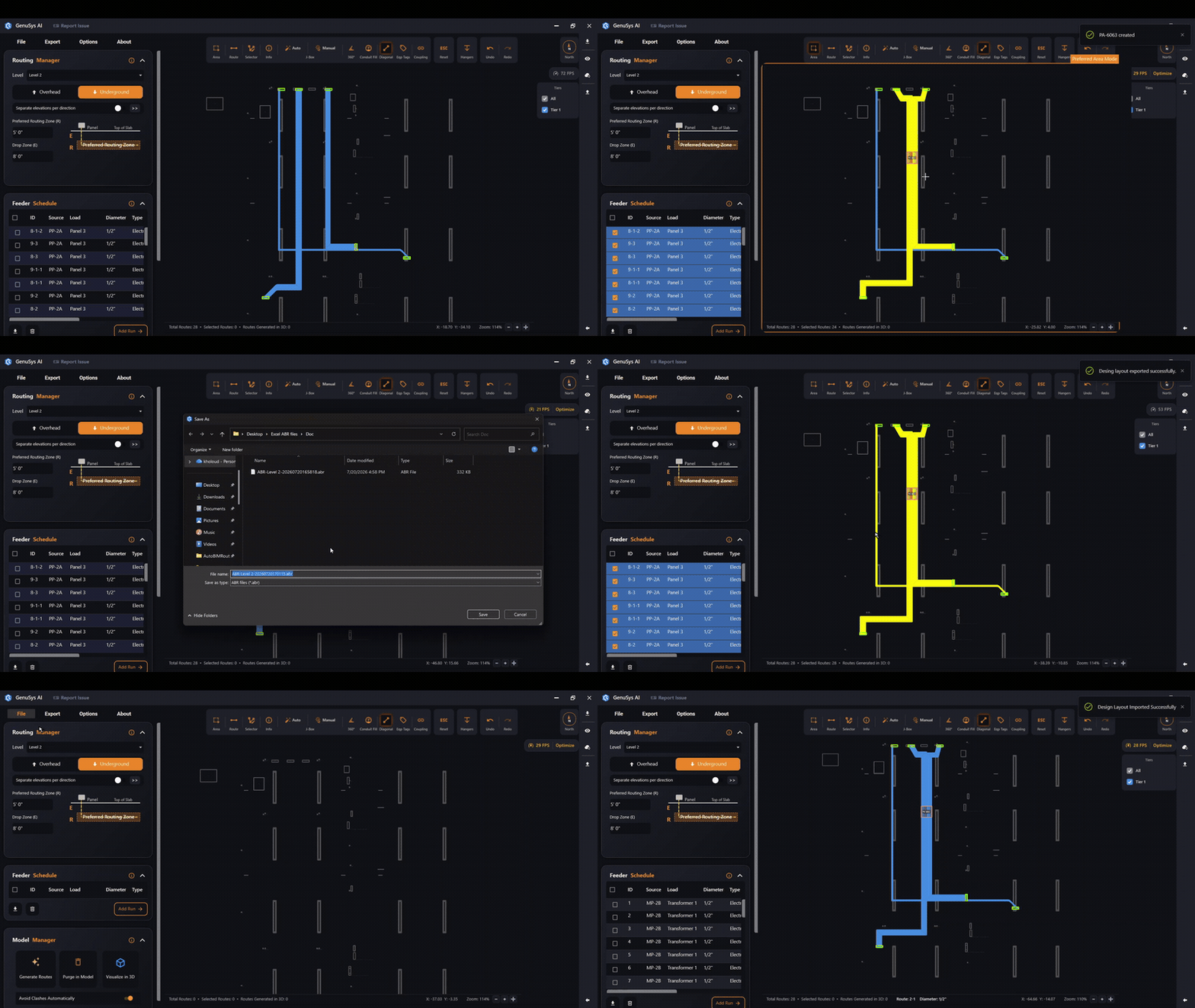
- Export → Design Layout writes your entire working state to a file — the feeder runs, the routes and their 2D layout, the preferred areas, the routing settings, added panels and pull boxes: everything.
- File → Import Design Layout loads that file back in.
The key point: when you import a design layout, it comes back in the exact same state you exported it. Nothing is recalculated or lost — the routes, preferred areas, tiers and settings are all restored just as they were. So you can stop mid-design, come back later, and pick up exactly where you left off — or hand the file to a colleague and they’ll open the identical state.
Use it to:
- Save a checkpoint before a big change.
- Resume a design in a later session.
- Share a design with a teammate so they see precisely what you saw.