The Export Window
Select a floor plan view, preview it in Revit, or export it as an ABR file.
Last updated July 19, 2026
The Branch Circuit Export window lets you pick a view and either preview it or export it.
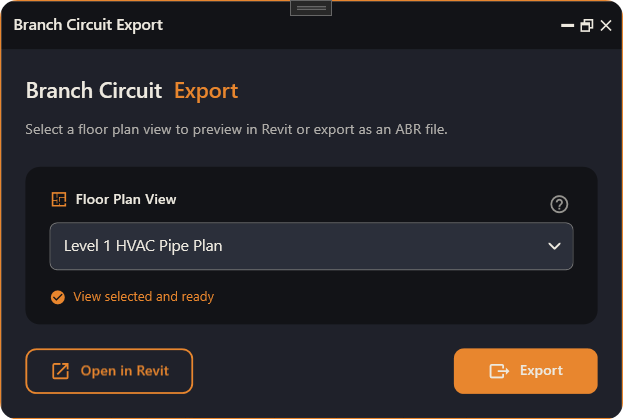
- Floor Plan View — choose the floor (or ceiling) plan view you want to export from the dropdown. You can type to filter the list. Once chosen, it shows “View selected and ready.”
- Open in Revit — opens that view in Revit so you can check it before exporting.
- Export — extracts the branch circuits and writes an
.abrfile.
What happens when you Export
When you click Export, ABR walks you through a few quick steps:
- Device categories — standard electrical, lighting and equipment are always scanned; here you can add any other categories that hold mis-modelled power/lighting devices.
- Background categories — choose which categories are drawn into the exported file as context.
- ABR extracts the model data (a progress window shows while it works — this can take a few minutes on large models).
- A lighting review lets you check the lighting and panel analysis.
- If any circuited device references a panel that isn’t in the export, ABR warns you before writing.
- Finally it writes the
.abrfile.