
The Feeder Schedule Window
The full editor — search, filters, editable cells and the bottom toolbar.
Last updated July 19, 2026
Clicking Add Run opens the full editor, where you build and fine-tune the whole list.
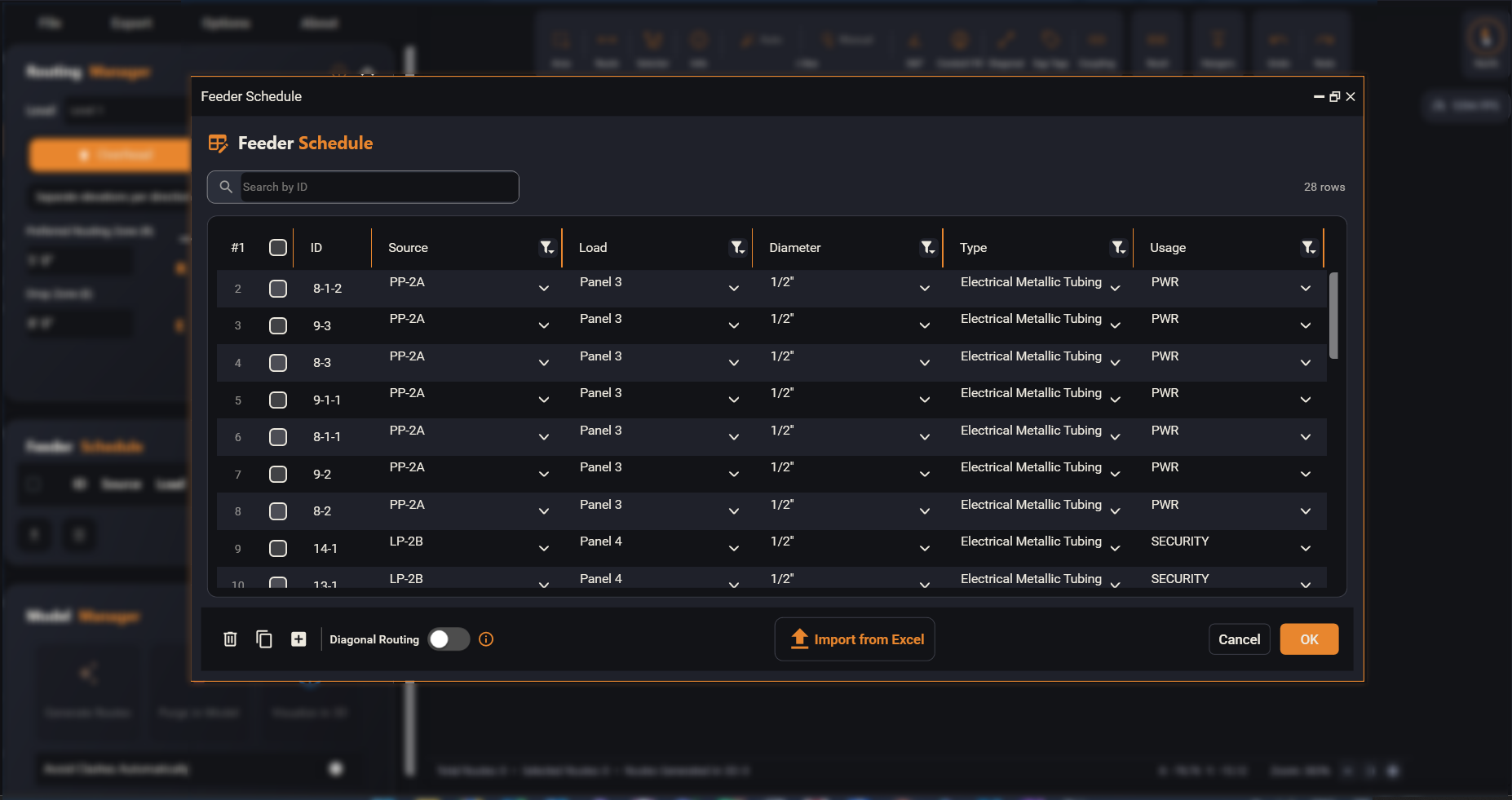
At the top:
- Search by ID — type to filter the list down to matching runs. The × clears it.
- Row count (e.g. 28 rows) shows how many runs are currently listed.
The table is fully editable — click any cell to change it:
- # — the row number.
- checkbox — select the row (the header checkbox selects all).
- ID — type the run’s name.
- Source / Load / Diameter / Type / Usage — pick from a searchable dropdown.
- Each column header has a filter (funnel) icon; it turns blue when a filter is active, so you can narrow the list by any column.
The bottom toolbar:
- 🗑 Delete selected rows
- ⧉ Copy selected rows — duplicates them (handy for near-identical runs).
- + Add a new row — adds a blank run to fill in.
- Diagonal Routing toggle — see Diagonal Routing.
- Import from Excel — load a whole feeder schedule from an Excel file.
- Cancel — close without saving your changes.
- OK — apply the schedule and close.