Default Settings
The values every generated branch starts from, and the rules that decide how circuits merge.
Last updated July 20, 2026
Options → Default Settings is the most important window in the desktop app. It holds the values applied to generated branches when you don’t specify them yourself, and the rules that control how circuits are merged.
Get these right before you generate, and the output matches your project standards on the first run.
Box elevation is not set here — it’s configured during 3D placement in Revit.
Branch Defaults
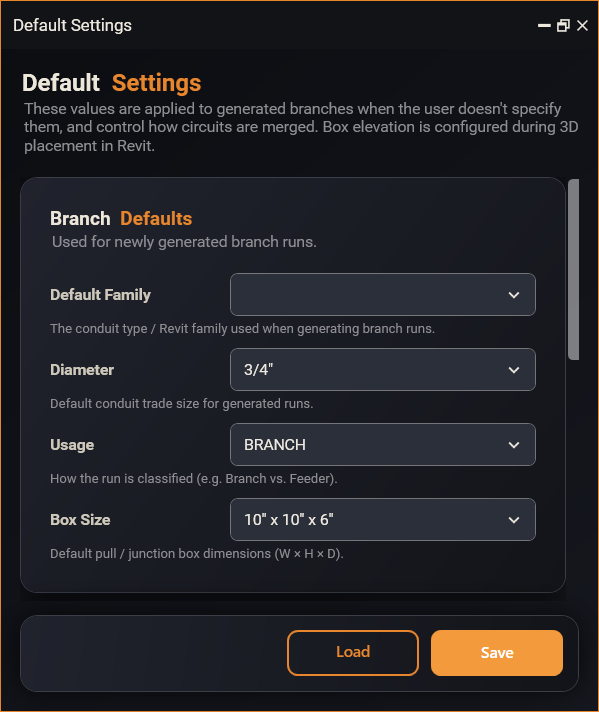
Used for newly generated branch runs.
- Default Family — the conduit type / Revit family used when generating branch runs.
- Diameter — the default conduit trade size for generated runs (for example
3/4"). - Usage — how the run is classified, for example
BRANCHvs Feeder. - Box Size — the default pull / junction box dimensions, W × H × D (for
example
10" x 10" x 6").
You can still override any of these per home-run box in Configure Circuits.
Circuit Merging
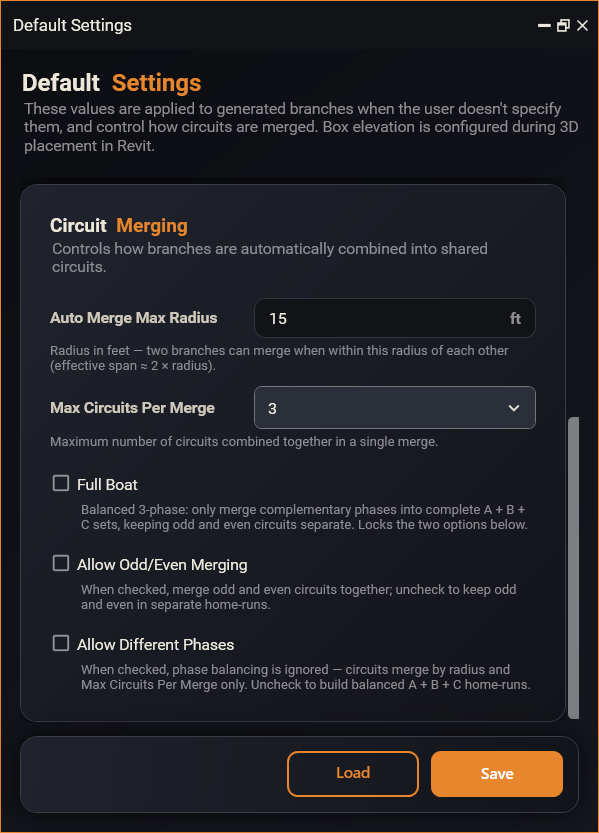
Controls how branches are automatically combined into shared circuits — these are the rules the Merge Circuits toggle applies.
- Auto Merge Max Radius — radius in feet (for example
15 ft); two branches can merge when they are within this radius of each other (effective span ≈ 2 × radius). - Max Circuits Per Merge — the largest number of circuits combined into a
single merge (for example
3). - Full Boat — balanced 3-phase merging: only merge complementary phases into complete A + B + C sets, keeping odd and even circuits separate. Ticking this locks the two options below.
- Allow Odd/Even Merging — when checked, odd and even circuits can merge together; uncheck to keep them in separate home runs.
- Allow Different Phases — when checked, phase balancing is ignored and circuits merge on radius and Max Circuits Per Merge alone. Uncheck to build balanced A + B + C home runs.
Load & Save
Two buttons at the bottom of the window:
- Save — store the current values as your defaults.
- Load — bring back a saved set of defaults.
That makes it easy to keep one set of standards per client or per project and load the right one before you start.