Context Menu Shortcuts
The right-click menu in the desktop viewer — HR box editing, view, selection, paths, attributes and tool shortcuts.
Last updated July 20, 2026
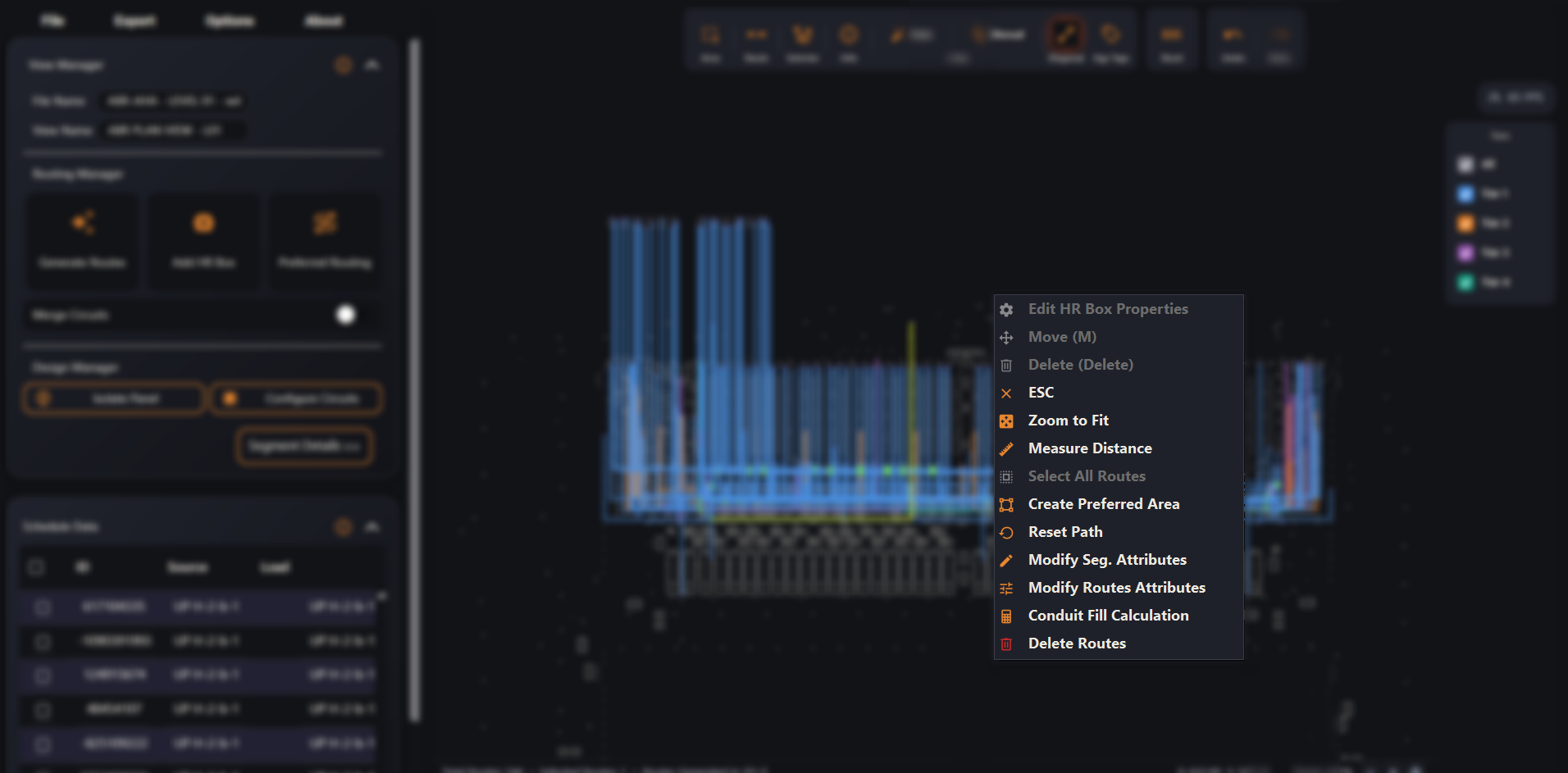
Right-click anywhere in the viewer to open the context menu. Many items are context-sensitive — they grey out (or disappear) depending on what you have selected: an HR box, a segment, a route, or nothing at all.
HR boxes
These are the desktop-only items — they light up when you right-click an HR (home-run) box:
- Edit HR Box Properties — open the box’s properties to change its details.
- Move (M) — pick the box up and move it (see below).
- Delete (Delete) — remove the box. The Delete key does the same.
- Merge HR Boxes — combine selected boxes into one shared box.
Moving a box
Right-click a box and choose Move (M), drag it to where it should sit, then right-click again and pick Confirm to drop it — or Cancel to put it back where it was. The branch routes follow the box to its new position.
View & measure
- ESC — closes the menu without doing anything.
- Zoom to Fit — zoom the viewer so everything fits on screen.
- Measure Distance — measure the distance between two points you click.
Select
- Select All Routes — select every route on the current level.
Paths & preferred areas
- Create Preferred Area — turn the selected routes’ path into a preferred area, so future routing follows it.
- Reset Path — clear manual edits on the selected routes and let ABR re-route them automatically.
Edit
- Modify Seg. Attributes — edit the attributes of the selected conduit segment(s) — for example its elevation.
- Modify Routes Attributes — edit attributes of the selected route(s).
- Delete Routes — delete the selected routes from the layout.
Tools
- Conduit Fill Calculation — open the NEC conduit-fill calculator for the selection.
- Conduit Stacking — open Conduit Stacking for a preferred area.
- Export Isolated Panel — export just the panel you have isolated. Shown when you’re in Isolate Panel mode.