Action Buttons
The viewer toolbar — the same drawing and editing tools you use in the Revit plugin.
Last updated July 20, 2026
The Action Buttons sit across the top of the viewer. They are the same tools as in the Revit plugin, and they behave identically here — if you know the plugin toolbar, you already know this one.
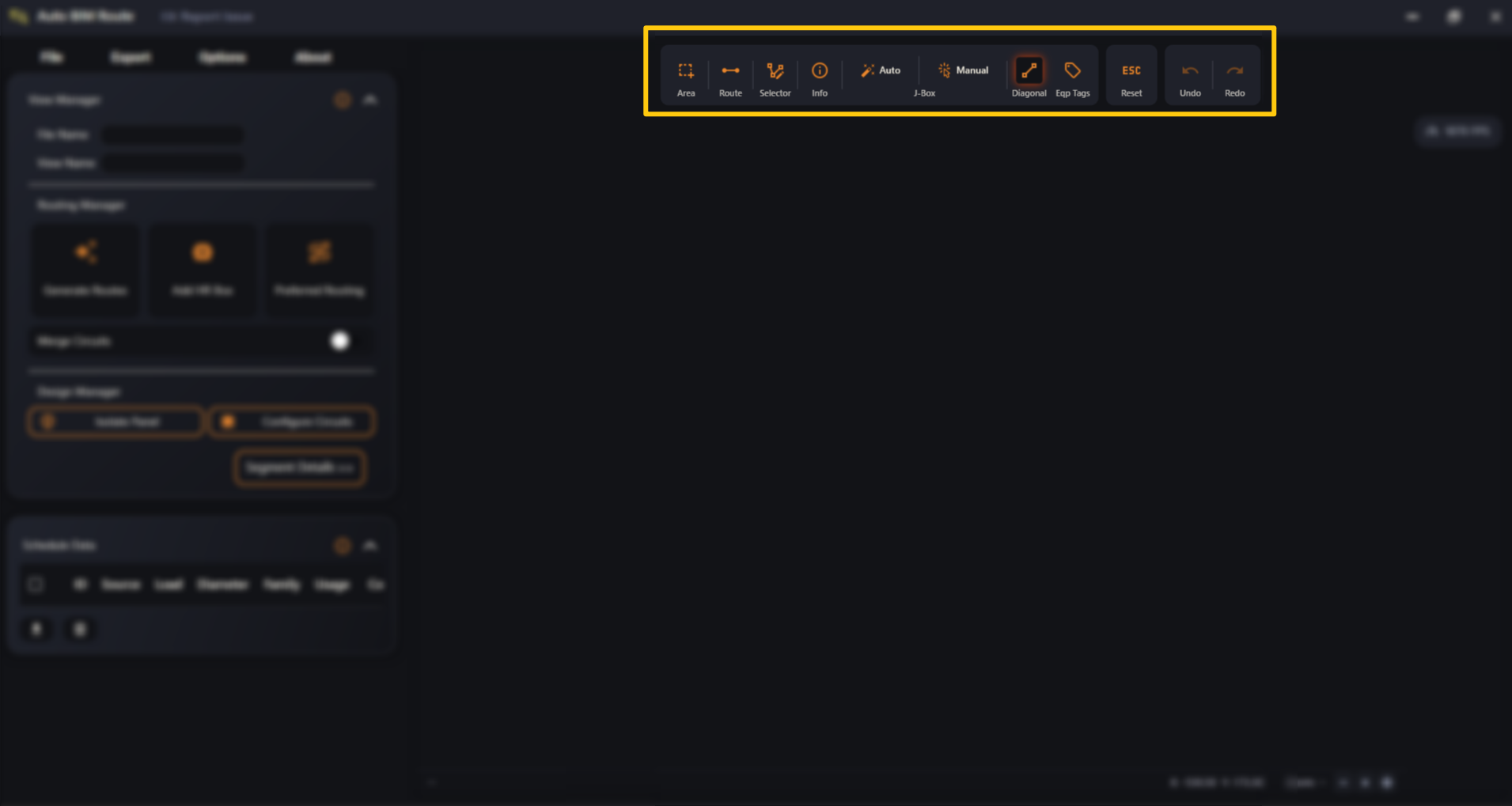
Some buttons are one-click actions; others are modes or toggles that stay on (and glow) until you turn them off. Reset (ESC) exits any active mode.
In the desktop app the toolbar is: Preferred Area · Route Creation · Segment Selector · Info · J-Box (Auto / Manual) · Diagonal Kick · Eqp Tags · Reset (ESC) · Undo · Redo. The Revit-only tools — 360° bend check, Conduit Fill, Coupling and Hangers — live in the plugin, though Conduit Fill Calculation is still available here from the right-click menu.
Pick a button below to learn what it does — most have a short clip.